Open your page
Open the personal link supplied by your teacher. Keep it somewhere private so you can return to your work. The page shows the name assigned to your link.
Choose English, Français, or Deutsch from the interface-language selector. This changes the page’s controls and messages; lesson content keeps the language used by your teacher.
Use the three tabs:
| Tab | Contents |
|---|---|
| Lesson | Lesson outcomes, materials, reading, writing, and voice tasks. |
| Practice | Exercises assigned to you and your saved practice progress. |
| Feedback | Your teacher’s published feedback on your submissions. |
In a group, each person should use their own link. A replacement link for the same learner keeps that person’s earlier work.
Read and write
Open Lesson and read the outcomes, materials, and assigned instructions. For a writing task, enter your response and select Save. Wait for Saved before leaving.
You can return to the task, revise the text, and save another response. The teacher reviews the submitted wording alongside the task instructions that applied to it. Writing responses support up to 10,000 characters.
If saving fails, keep the page open and retain a copy of your text. Check the error, restore connectivity, and retry. If the assignment changed, load its current instructions before submitting a new answer.
Practise
Open Practice and complete the current exercise. Select options, fill blanks, match pairs, reorder items, or type your answer. Select Check to reveal the assessment or self-check information.
Use Good or the confidence action when you are satisfied with the response. Use Again when you need to practise it again. Try again starts another attempt at the exercise. Wait for the saved state so your progress survives a reload.
For an open answer without a fixed key, assess your confidence using the provided self-check action. A teacher-authored answer key is used only where the exercise includes one.
If a save fails after checking, retry from the retained answer. If the task has changed, use the displayed refresh action to load the new exercise. A background refresh keeps the question and answer you are currently working on until you deliberately replace them. If the teacher withdrew the exercise, continue to the next available task.
Send a voice response
- Open the voice task in Lesson and read its prompt.
- Choose the recording action and allow microphone access, or choose an audio file.
- Record your answer and stop. The maximum duration is five minutes.
- Listen to the preview. Record again if needed, or download a personal copy.
- Send the response and wait for confirmation.
Source audio files can be up to 20 MiB. Conversion to the submission format happens on your device. Use the file choice if the browser cannot access your microphone. Leaving the Lesson tab or hiding the page stops microphone capture.
A failed upload keeps the preview available. Retry the same submission rather than recording it again solely because the response was lost. Each task supports up to 10 retained recordings, including recordings in recoverable trash.
Use the recording’s trash action to remove a response from playback. You can restore it within seven days, subject to the 90-day overall audio-retention period.
Read feedback and revise
Open Feedback to read shared comments and corrections. For a recording, select a timed comment to listen at that point. Draft feedback appears only after your teacher shares it.
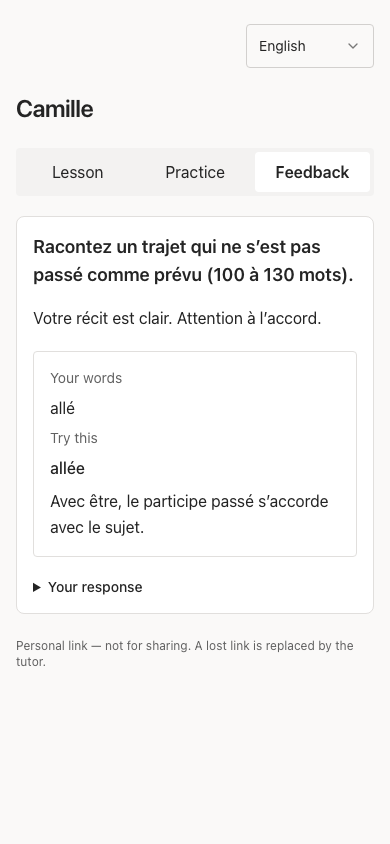
Use the suggested wording and explanation when preparing a revision.
Return to Lesson to revise your writing or make another recording. A new submission lets the teacher review the revised work separately.
Recover access
If the link has expired or was revoked, ask the teacher for a replacement for your existing learner identity. If the page shows another person’s name, stop entering work and open your own link.
When switching personal links on a shared device, open the complete intended link and check its displayed name. Each link selects its own learner data and form state.