Open the session’s Notes
After ending a session, continue to its Notes page. You can also return through the Library’s Write the notes prompt or the Notes links on the deck or person’s folder.
Notes belong to the session that was taught. Check the session title before editing.
Write and save
| Field | Content and audience |
|---|---|
| Outcomes (one per line) | Short statements of what was achieved. Shared through learner links when the session has a learner context. |
| Next step | A private teaching reminder used when preparing the next session. |
| Tutor notes / Private notes | Private teaching observations, available to authorized colleagues in the space. |
| Homework | Published tasks and their learner recipients for this session. |
Enter outcomes on separate lines. Keep Next step actionable. Review the homework inherited from the taught deck, adjust its instructions or recipients, then select Save notes or Update notes.
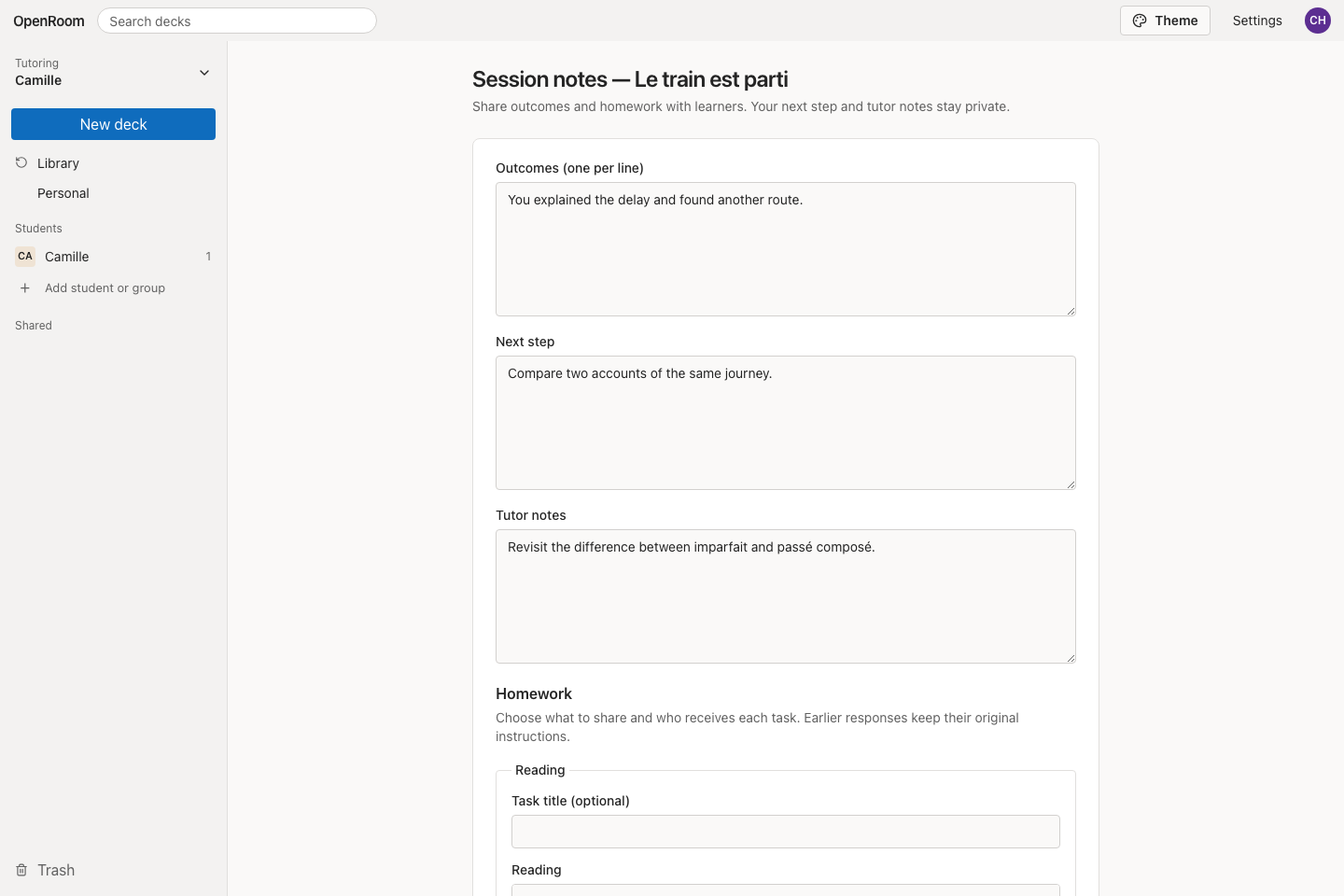
Outcomes are shared with learners; Next step and Tutor notes remain on the teaching side.
Sessions without a learner context retain their Notes in the space. A context-linked session shares only its learner-facing fields and the tasks each learner is entitled to receive.
Carry over notes from presenting
The live Private notes scratchpad is kept on the current device. After ending the session, its contents prefill the Notes form when appropriate. Save the form to store them with the session.
If saved Notes and separate local notes both exist, review Notes on this device. Select Add to private notes to append the local text, or Download private notes to keep a text copy.
Use Notes as a presenter
A Presenter can read shared session Notes and keep Notes on this device. These local notes stay in that browser. Use Download private notes to export them. An Editor or Owner saves changes to the shared session record.
If your editing access is removed while the form is open, saving stops and the private scratchpad remains on the device. Download a copy before leaving. Ask a space owner to review your access if further shared editing is needed.
Handle concurrent changes
If another tutor changes the homework while your form is open, the save reports a conflict. Copy your edits before reloading, review the latest assignments, then reapply the intended changes. Existing learner responses keep the instructions they were submitted against.
Trashed sessions show saved Notes as read-only. Restore the session to resume normal editing.